
To turn the Supply Tracking setting on:
- Go to Account Settings in Performance Beef webview.
- Scroll down the System Settings section.
- Select the dropdown for Supply Tracking.
- Choose ON
- Choose ON
Tip: If Supply Tracking is turned on but the account had previous inventory before switching on the setting your first step needs to be to add in the existing amount as a supply so it properly pulls from that before anything else.
Add Supplies:
Feedyard (Shared Pool)
- Click the Inventory tab on the left side of the screen within your Performance Beef account.
- Click on the ingredient name you wish to work with
- You have the option to add or adjust
- Add
- Supply Name is optional-if you do not enter one the ledger will display the entry as the date
- Date Received
- Amount (weight)
- Estimated Shrink (%) - optional
- Cost Per Unit
- Time of Day
- Add
- You have the option to add or adjust
- If that supply needs to start being pulled from before feeding begins on selected date or at the very end of the day once all feeding is done
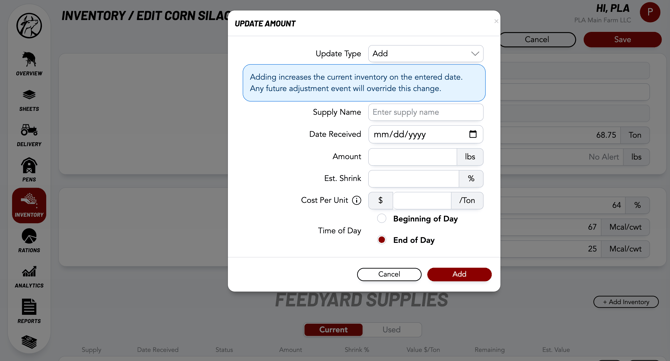
Note: When a customer has a supply their cattle will always be fed from that first THEN the shared feedyard supply if they run out. This feature treats all inventory on a "First In First Out" basis.
Customer Supplies
- When in the Inventory tab, instead of going straight to an item you will first use the drop down selection at the top of the page to choose which owner you'd like to alter a supply for.
- There you can select an item and follow the same steps as listed above for the feedyard supplies
Caution: If you don't intend to charge a customer for feed they provided for their own cattle then their supply price needs to be $0 and they will have no markup added as well
Feedyard Supplies Section
-
This area of each item's page lists all of the supplies entered and their status
- In Use (currently being used in feeding)
- Next (the upcoming supply to be pulled from)
- Standby
- An Estimated Value for each supply is also calculated and presented in the case where a yard would be in the position to sell any items
- Each entry can be edited or delete here if needed
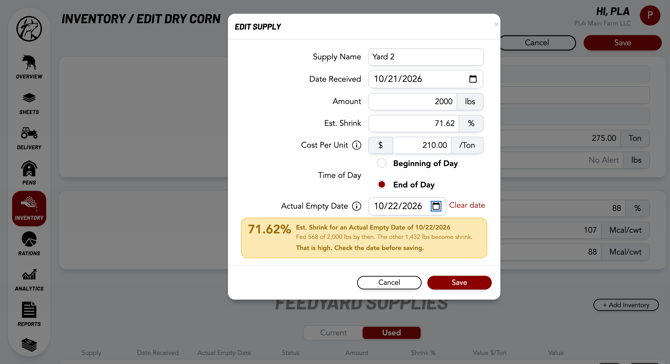
- Actual Empty Date
- This can be entered when editing a supply line in the case that the item does run out and the system still shows an amount left. The remaining will be counted as shrink.
- If that date spikes the shrink % to an alarming level there is a calculation of that presented to view before saving changes.
- This can be entered when editing a supply line in the case that the item does run out and the system still shows an amount left. The remaining will be counted as shrink.
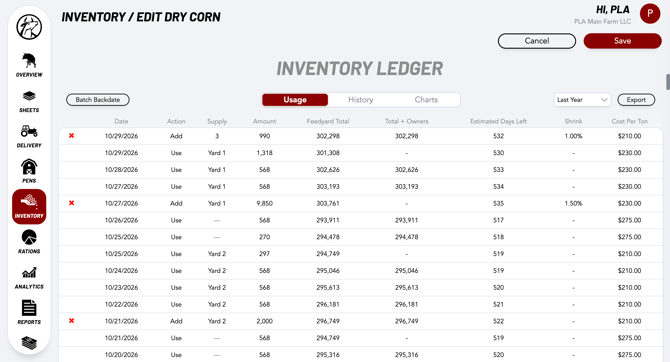
Inventory Ledger
The inventory ledger of each item will show use history that can be exported and visual charts that allow for deeper understanding of how the item is being utilized and impacting animals, owners and the account holder
Our Customer Success team is here to help. If you have questions, call us at 515-337-2187 or email us at support@cattlekrush.com. Take advantage of our complete resource library and how-to videos to help you succeed.