
Establish price differences between different owners
- Navigate to Webview
- Select Inventory tab in left panel of screen
- Select second drop down menu
- Select owner within the list to manage ingredient pricing
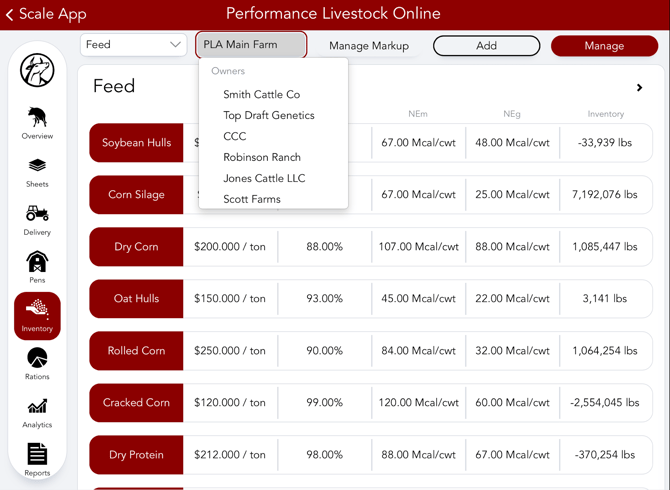
Manage Owner Pricing
- Select ingredient you desire to mark up
-
- Choose desired Markup Value:
-
-
-
-
- Fixed Price: A set price that is not based off of the main farm price
- Flat Markup: A dollar value applied to the base price (set on main account ingredient)
- % Markup: Additional percentage value applied to the base price
- Enter desired markup in the box below ($ or %)
-
-
Backdating
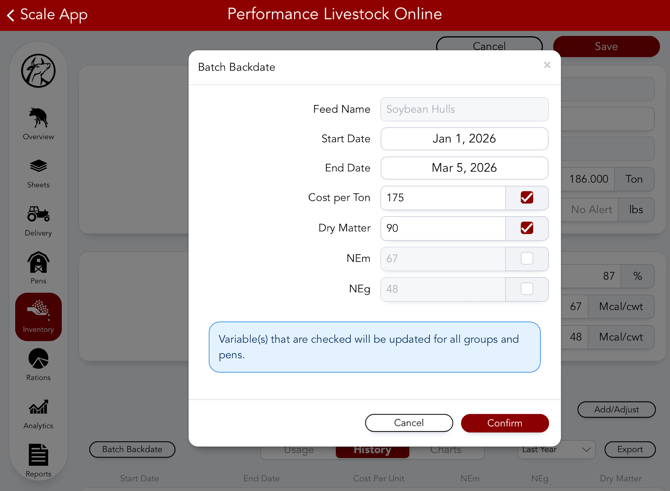
- Navigate to the Backdate Markup within each owner ingredient
- Scroll to Inventory Ledger at bottom of ingredient page
- Toggle to access daily usage, historical pricing, and visual comparisons of owner cost vs main account cost
Other Inventory
- All steps above can be applied to Other Inventory items as well
- Simply change the Feed dropdown to Other and update from that page
Manage Markup
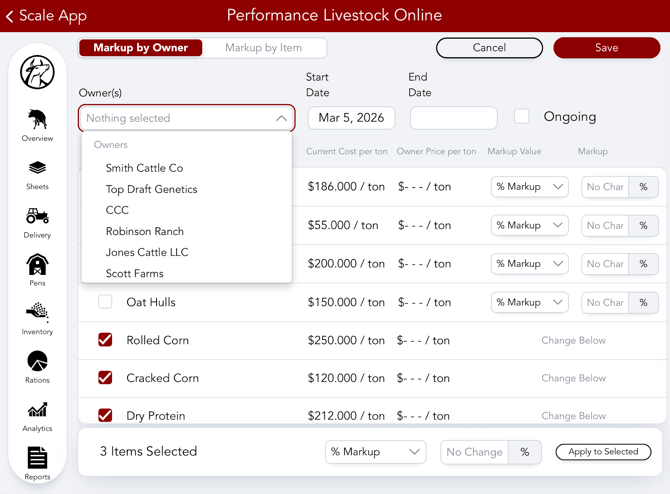
- To bulk edit for inventory items or owners across an account you will navigate to Manage Markup in the Inventory tab of Webview
- There, Markup by Owner or Markup by Item can be selected
- Choose a time frame or a start date and selected "Ongoing"
- Alter the desired markup selection
- Then finally press "Apply to Selected"
Our Customer Success team is here to help. If you have questions, contact us by calling 515-337-2187 or email us at support@cattlekrush.com. Be sure to take advantage of our complete resource library and how-to videos created to help you succeed.